PETERBOROUGH ESCAPES
Getting started
A guide for your phone · Page 1 of 5

Before you start
Open www.peterboroughescapes.co.uk, or scan this code with your phone's camera and tap the link. Have your email and a photo of your face ready.

STEP 1 Create your account
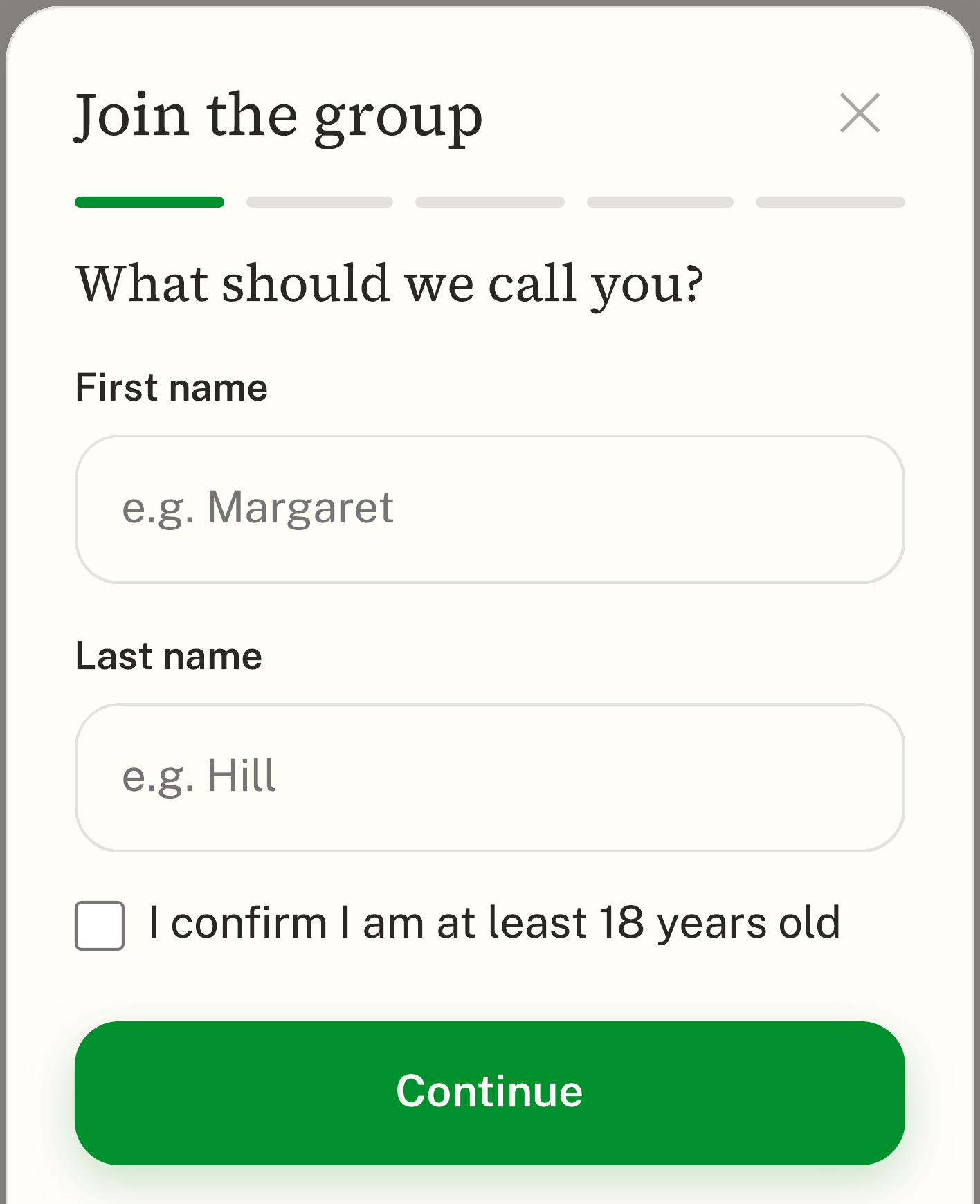
- Tap Menu at the top right, then Join the group. Enter your name, confirm you are at least 18 and tap Continue.
- Enter your email and tap Continue. Choose a password using the rules shown, repeat it and tap Continue.
- Tap Choose a photo. Choose a clear photo of your face, then tap Continue.
- Choose how you heard about the group. For Other, fill in Please specify. Tap Create account.
Next: open the verification email and tap its link. Check spam or junk if needed. An organiser must also approve your account.
STEP 2 Sign in
- Tap Menu, then Sign in.
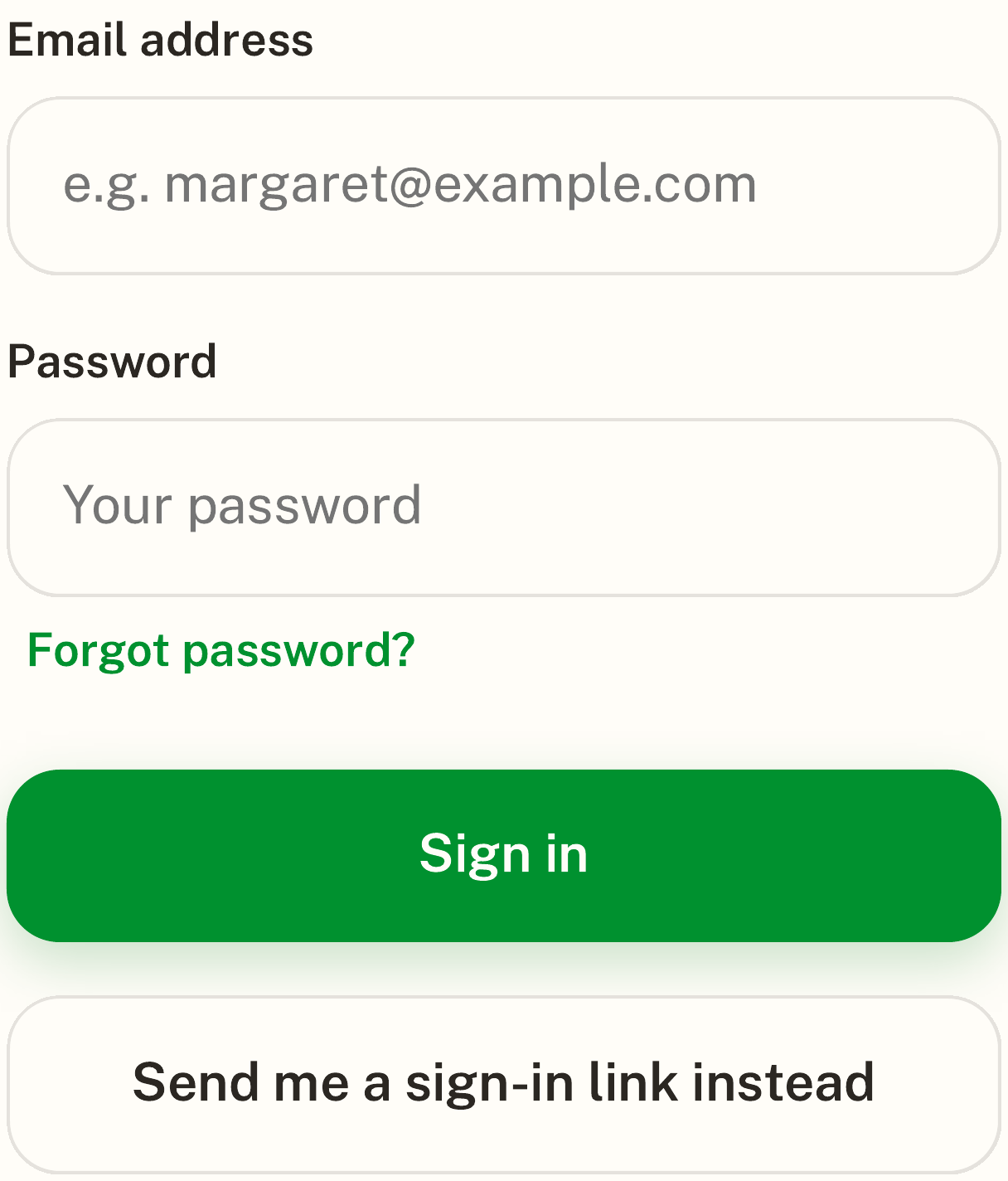
- Enter the email address you used to join and your password. Tap Sign in.
Use an email link instead: enter your email, tap Send me a sign-in link instead, then Send sign-in link. Open your email and tap the link.
Forgotten your password? Tap Forgot password?, enter your email and tap Send reset link. Open the email and follow the link to choose a new password.
STEP 3 Find an event
- Tap Menu, then Events. You can browse without signing in.
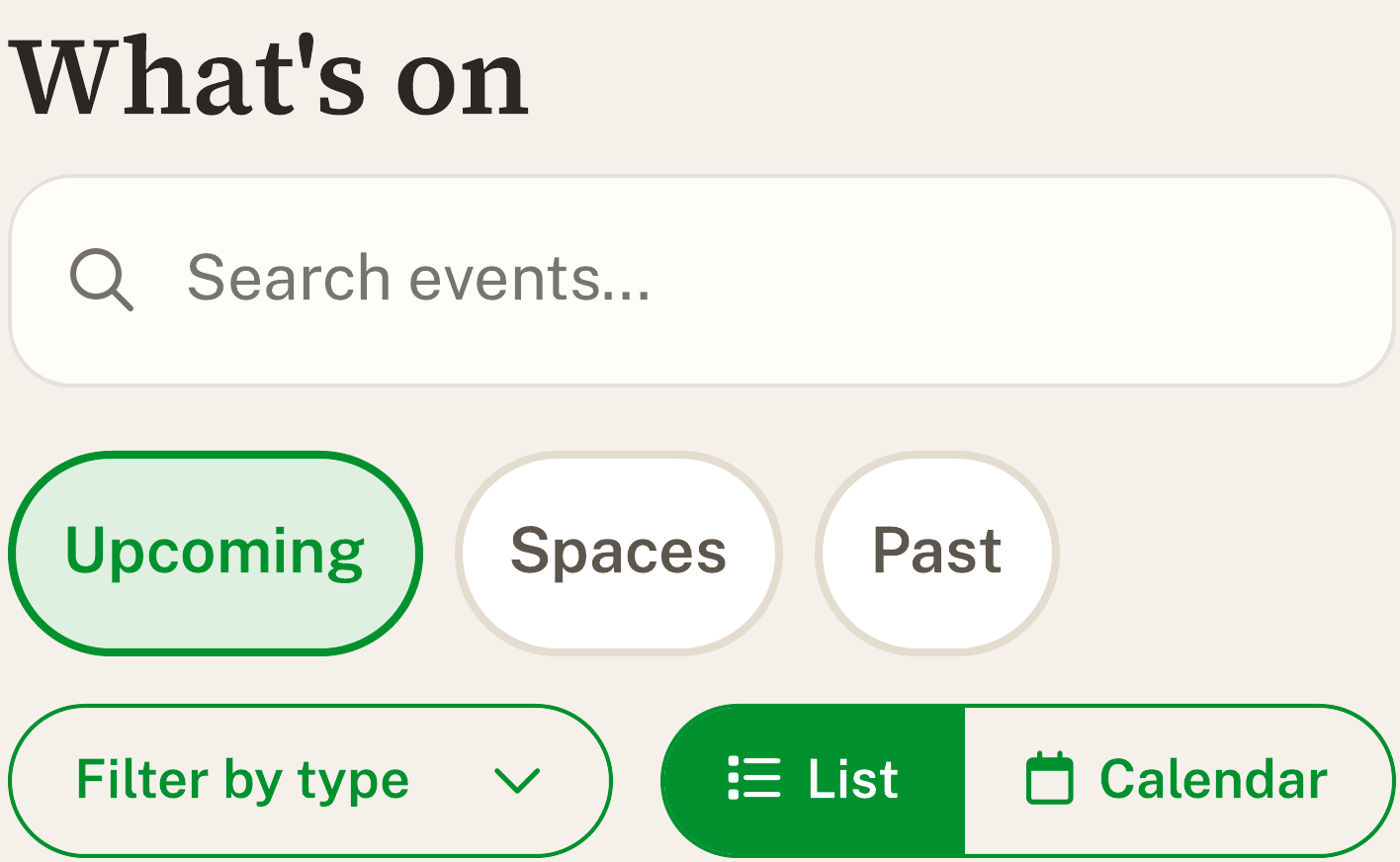
- Use Search events... to search by name, Spaces for places left or Filter by type for activities.
- Tap an event to read about it. To browse by date, tap Calendar, choose a date, then an event.
Going shows your events when signed in. Past shows earlier events. Reset clears filters.