
PETERBOROUGH ESCAPES
Ideas and the app
A guide for your phone · Page 5 of 5

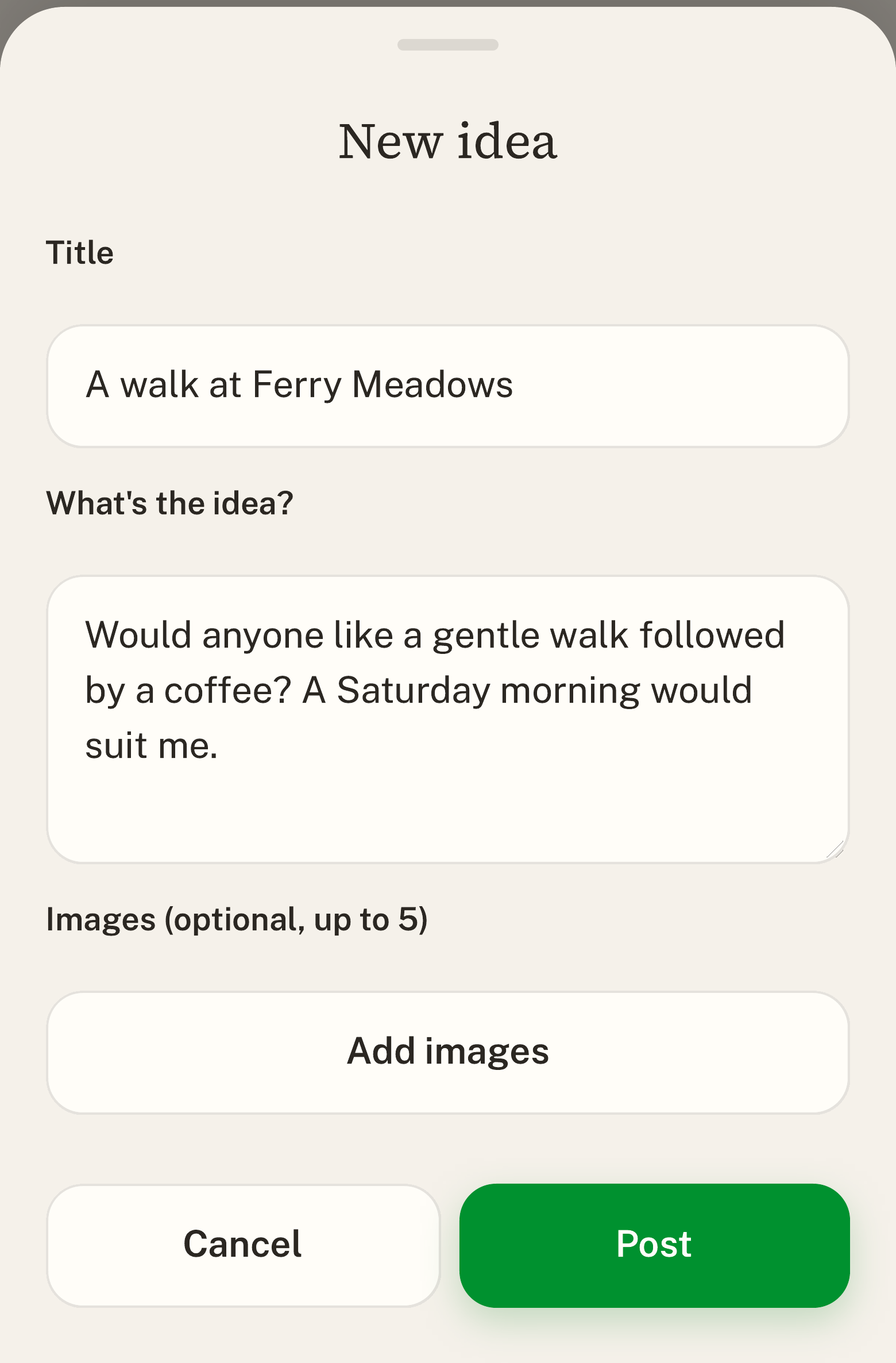
STEP 9 Suggest an event
- Sign in. Tap Menu, then Community, then Event Ideas. Your account must be approved.
- Tap Post an idea. Give your idea a short name in Title.
- In What's the idea?, explain what you would like to do. Add a place, date, time or likely cost if you know them.
- To include pictures, tap Add images and choose up to five. Wait for them to finish uploading.
- Check your idea and tap Post. It appears in Event Ideas. To leave without posting, tap Cancel.
Join the discussion: tap the idea's Comment or Comments button to read and reply. Posting or liking an idea does not book a place. Join through Events once an event is arranged.
STEP 10 Add the app to your phone
Open www.peterboroughescapes.co.uk in your phone's browser and sign in. Follow the instructions for your phone below to add an icon to your Home Screen.
Android: use Chrome
- If the website shows Install this app, tap Install and confirm in Chrome.
- If it does not, tap Chrome's three-dot menu ⋮ beside the address bar. Tap Install and create shortcut, then Install. Follow the instructions shown.
- Open the new app icon on your Home Screen or in your app list. Sign in again if asked.
iPhone: use Safari
- Tap Safari's Share button (a square with an upward arrow). In some layouts, first tap the three-dot page menu ⋯, then Share.
- Scroll down and tap Add to Home Screen. If missing, use Edit Actions to add it.
- Leave Open as Web App on if shown, then tap Add. Open the new icon on your Home Screen and sign in if asked.
Not ready? Tap Remind me later (or Got it on iPhone) to hide the website's install notice for seven days on that browser and phone. You can still install from the browser menu at any time.
Phone alerts: allow notifications when asked if you want them. Choose your updates in Menu, Account, Notification preferences (Step 7). Browser menu wording may vary.