PETERBOROUGH ESCAPES
Staying in touch
A guide for your phone · Page 4 of 5

STEP 7 Choose your notifications
- Sign in. Tap Menu, then Account. Scroll down and tap Notification preferences.
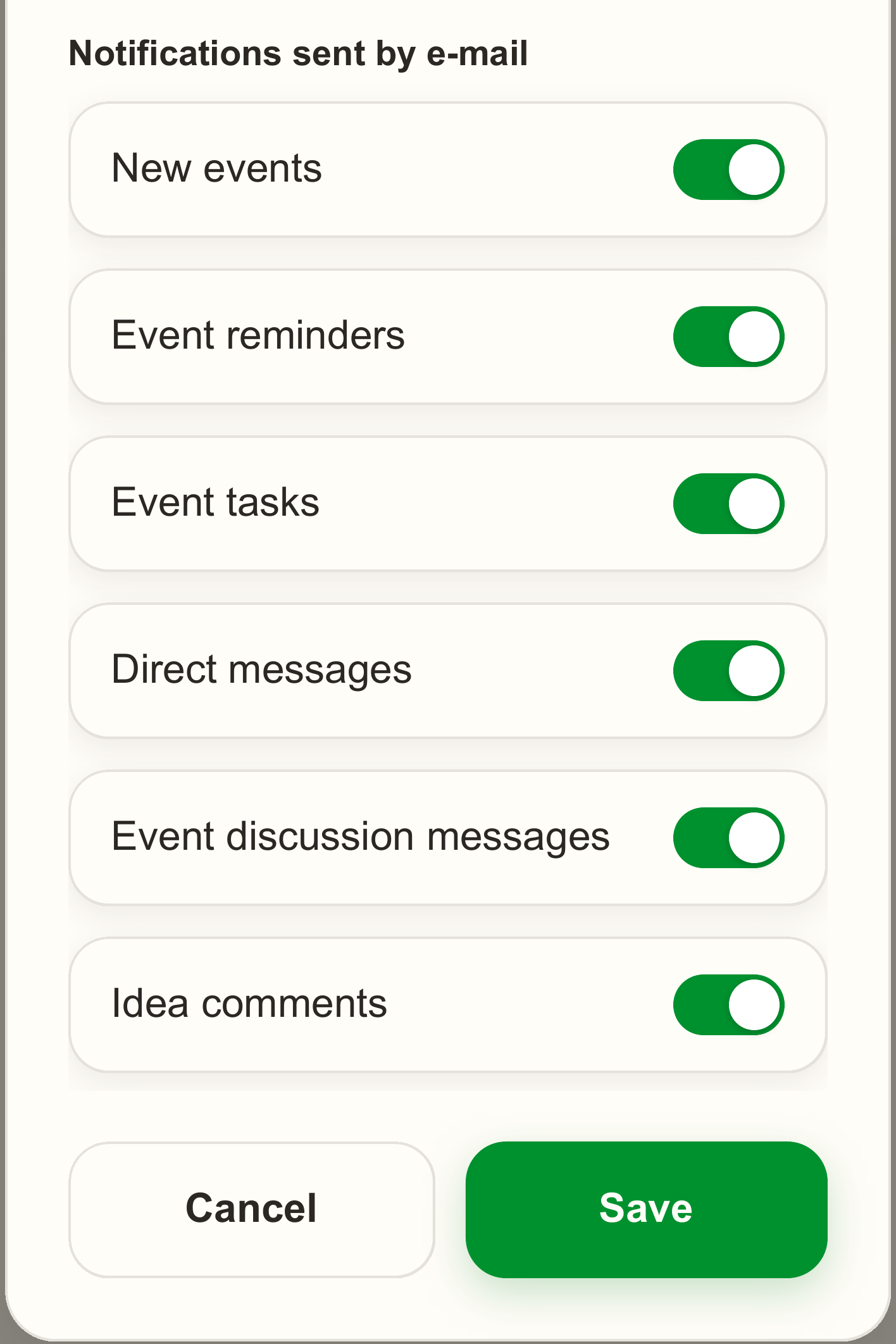
- Under Notifications sent by e-mail, tap each switch to turn that type of update on or off.
- Scroll inside the panel to Notifications sent by push to your device. These are alerts on your phone. Set these switches separately from email.
- Tap Save to keep your choices. Tap Cancel to close without saving.
Some updates are always sent: these include sign-in links, password resets, membership updates, event confirmations and cancellations, announcements and subscription reminders.
Read your updates
Tap the bell beside Menu at the top right, then tap an update to open it. Mark all read marks the rest as read. Deleting an update removes it from the list; it does not turn off future alerts.
No phone alerts? Check your phone and browser notification permissions. The switches here cannot turn on alerts that your phone has blocked. On iPhone, use the installed app (Step 10).

STEP 8 Contact another member
- Tap Menu, then Community, then Members. Your account must be approved.
- Type a name in Search members…. Tap the person's card, check their name and tap Message.
- Tap Type a message… and write your message. Tap Send to send it to that person.
- To return, find the member and tap Message, or tap their message update under the bell beside Menu.
Block or unblock someone
Open the person's member card, tap Block, then confirm Block. You will no longer be able to send direct messages to each other.
To undo this, open their card, tap Unblock and confirm. You can also tap Unblock in an existing conversation with someone you blocked.
Need help with unwanted contact? Contact an organiser using the details below.